
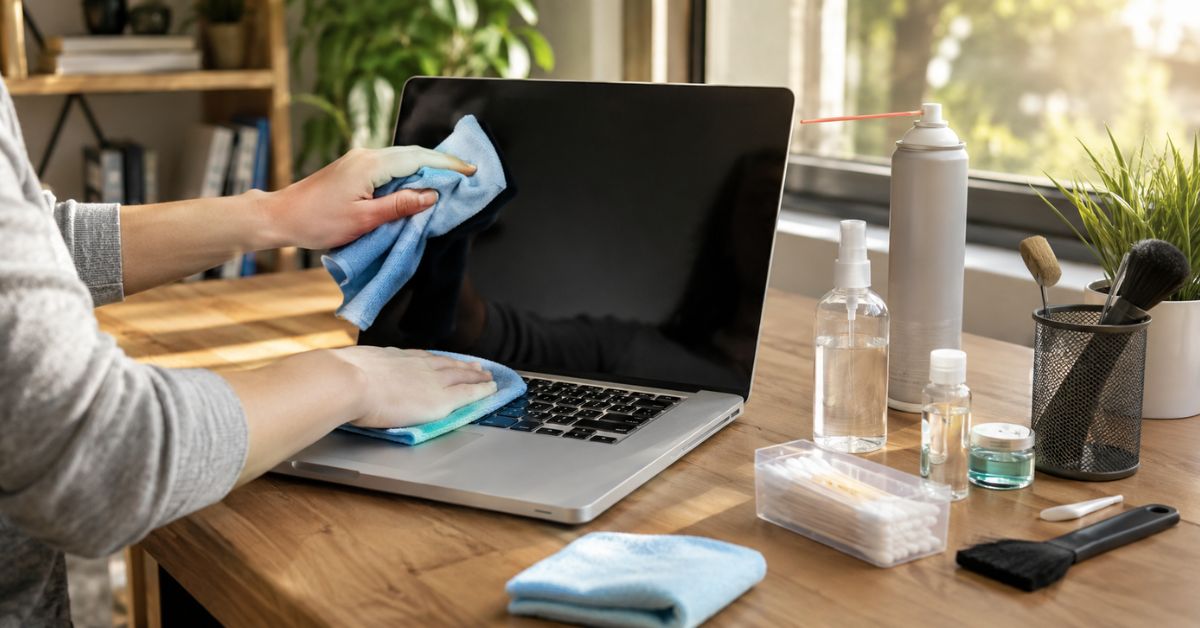
How to clean a laptop. Computers have become part of our everyday lives. Whether you’re working from home, attending online classes, managing a business, or simply browsing the internet, your laptop probably gets used for several hours every day. While most people remember to update their software and charge the battery, many forget one simple but important task: cleaning their laptop regularly.
If you’ve been wondering how to clean a laptop the right way, you’re in the right place. Dust, fingerprints, food crumbs, pet hair, and bacteria slowly build up on your laptop without you even noticing. Over time, this dirt can affect performance, block airflow, make the keyboard sticky, leave the screen covered in smudges, and even shorten your laptop’s lifespan.
Learning how to clean a laptop isn’t just about making it look nice. A clean laptop stays cooler, runs more efficiently, and provides a better experience every time you use it. Whether you own a Windows laptop, a MacBook, or a Chromebook, using the correct cleaning techniques helps protect your investment while preventing accidental damage.
The good news is that you don’t need expensive tools or professional experience. With a few safe cleaning supplies and the proper steps, you can remove dust, fingerprints, germs, and debris without scratching delicate surfaces or harming sensitive electronic components.
In this complete guide from True Housekeeping, you’ll learn how to clean a laptop safely from top to bottom. We’ll cover everything from cleaning the screen and keyboard to removing dust from vents, disinfecting frequently touched surfaces, avoiding common cleaning mistakes, and keeping your laptop looking like new for years.
Why Cleaning Your Laptop Is Important
Many people assume a laptop only needs cleaning when it looks dirty. In reality, dust and grime begin collecting long before they’re visible. This hidden buildup can reduce cooling efficiency, trap heat inside the device, and eventually affect overall performance.
Understanding how to clean a laptop helps prevent these problems before they become expensive repairs.
Every time you touch your keyboard or trackpad, natural skin oils transfer onto the surface. If you eat while working, tiny food particles often fall between the keys. Dust floating through your home gets pulled into the cooling vents every time the fan runs. Together, these everyday contaminants create the perfect environment for overheating and bacteria.
Regular laptop cleaning provides several important benefits:
- Keeps the display bright and streak-free.
- Improves airflow around cooling vents.
- Reduces overheating during heavy use.
- Removes bacteria and germs from frequently touched surfaces.
- Extends the life of the keyboard and touchpad.
- Helps maintain faster system performance.
- Makes your workspace look cleaner and more professional.
A clean laptop isn’t just about appearance. It also helps protect the hardware you’ve invested in.
Expert Tip
If your laptop becomes unusually warm, the fan runs constantly, or the keyboard feels sticky, it’s usually a sign that it’s time to learn how to clean a laptop before dust causes bigger issues.
Maintenance Tip
Spend just five minutes each week wiping the keyboard and screen with a microfiber cloth. Small cleaning sessions prevent heavy dirt buildup.
How Often Should You Clean Your Laptop?
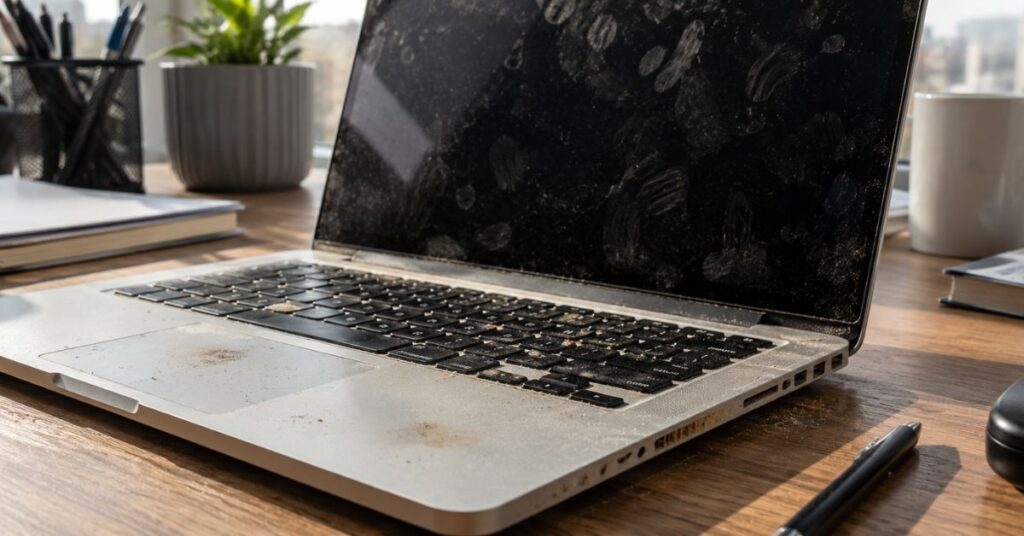
One of the most common questions people ask after learning how to clean a laptop is how often they should actually do it.
The answer depends on your daily habits, work environment, and how frequently you use your device.
For most people, a quick weekly cleaning keeps fingerprints, dust, and germs under control. A more detailed cleaning every month helps remove dirt hiding in the keyboard, vents, and ports.
Here’s a simple schedule that works for most users.
Daily
Wipe away fingerprints from the screen if needed.
Weekly
Clean the keyboard, touchpad, and outer surfaces.
Monthly
Clean laptop vents, charging ports, speakers, and air openings.
Every 3–6 Months
Perform a deeper cleaning to remove stubborn dust and debris while checking airflow around the cooling system.
If you own pets, work in construction, travel frequently, or often eat while using your laptop, you’ll probably need to clean it more often.
Expert Tip
People who work from coffee shops or carry their laptops in backpacks usually collect much more dust than those who mainly use them at home.
Maintenance Tip
Keeping your laptop inside a protective sleeve when you’re not using it dramatically reduces dust accumulation.
Things You’ll Need Before Cleaning a Laptop
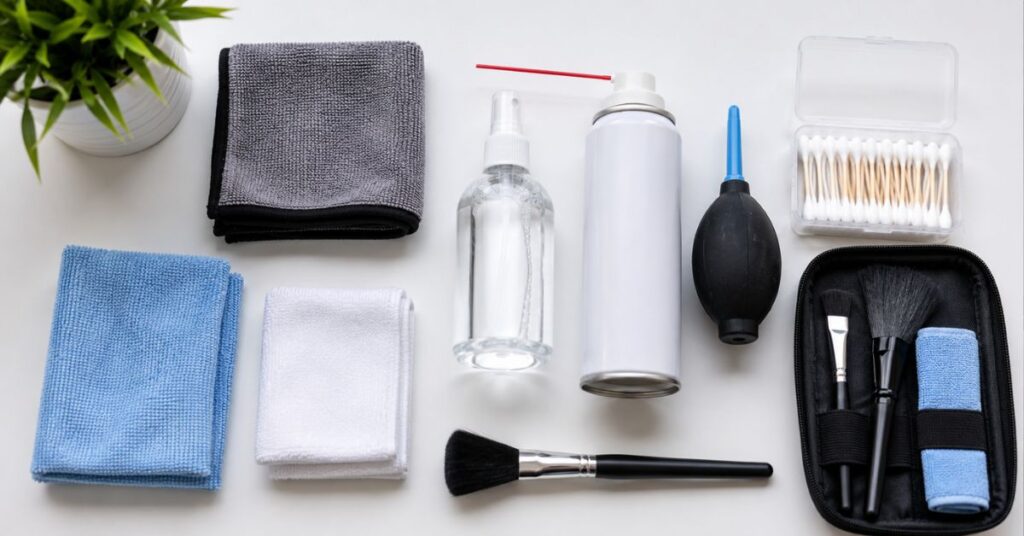
Before learning how to clean a laptop, gather the proper cleaning supplies. Using safe materials greatly reduces the risk of scratches or accidental damage.
Fortunately, you don’t need expensive products.
Many laptop manufacturers and professional technicians recommend the following supplies.
- Clean microfiber cloth
- Soft anti-static brush
- Compressed air can
- Cotton swabs
- 70% isopropyl alcohol (if approved by your laptop manufacturer)
- Distilled water
- Small spray bottle (never spray directly on the laptop)
- Soft dry towel
Some specialty electronics cleaning kits also work well, but the items above are usually enough for routine maintenance.
Never Use These Products
Avoid using:
- Paper towels
- Window cleaner
- Bleach
- Ammonia-based cleaners
- Acetone
- Furniture polish
- Abrasive scrubbing pads
- Excessive water
- Household disinfectant sprays
These products may scratch the screen, remove protective coatings, or damage sensitive electronics.
Expert Tip
Always spray cleaning solution onto the microfiber cloth, not directly onto the laptop.
Maintenance Tip
Wash microfiber cloths regularly without fabric softener to maintain their cleaning performance.
Safety Precautions Before You Start
Before beginning how to clean a laptop, taking a few safety precautions can prevent expensive mistakes.
Although cleaning seems simple, electronics require extra care because moisture and electricity don’t mix.
Follow these important steps before touching any part of your laptop.
Turn off the laptop completely instead of leaving it in Sleep Mode.
Disconnect the charger, USB drives, headphones, SD cards, external hard drives, and any other accessories.
If your laptop has a removable battery, remove it before cleaning.
Allow the laptop to cool down if you’ve been using it for a long time. Warm electronics can attract moisture more easily.
Wash and dry your hands before starting so you don’t transfer additional oils onto the device.
Work on a clean, dry table with plenty of lighting.
Never allow liquids to drip inside keyboard openings, speaker grills, charging ports, USB ports, or cooling vents.
Safety Warning
Even when learning how to clean a laptop, remember that excessive moisture causes more damage than dust. Use only lightly dampened cloths—not soaking wet ones.
Maintenance Tip
Keeping a dedicated electronics cleaning kit in your desk drawer makes regular maintenance much easier.
How to Clean a Laptop Exterior
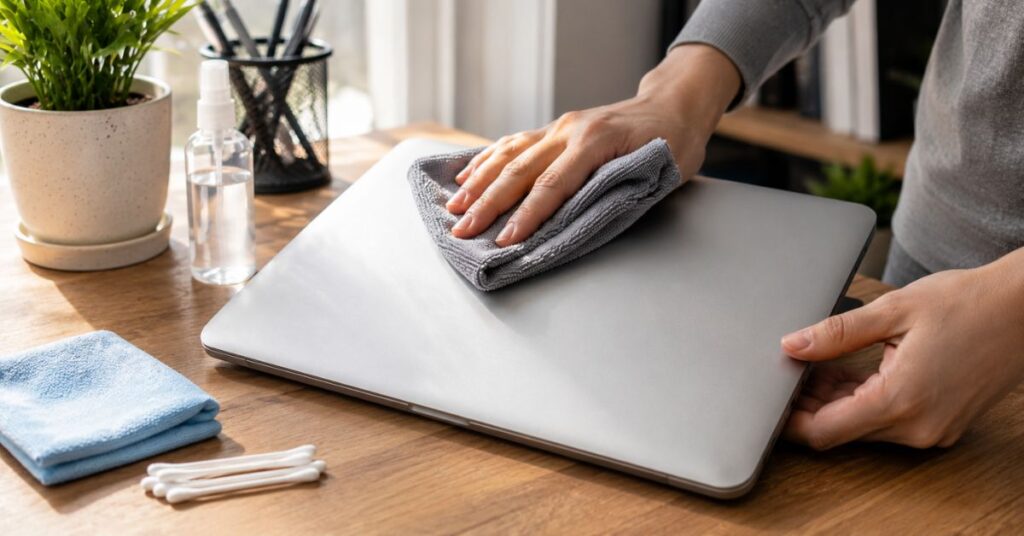
Now that you’ve prepared your supplies, it’s time to begin cleaning a laptop by cleaning the outside surfaces.
The laptop exterior collects fingerprints, dust, skin oils, and everyday grime. Cleaning these areas first prevents dirt from spreading to the screen or keyboard during the rest of the process.
Start by closing the laptop.
Use a dry microfiber cloth to gently wipe the lid using straight, overlapping strokes. This removes loose dust without scratching the finish.
Next, slightly dampen another microfiber cloth with distilled water or a manufacturer-approved electronics cleaner. The cloth should feel barely damp—not wet.
Carefully wipe the top cover, bottom panel, palm rests, and side edges. Pay extra attention to areas around the hinges where dust often collects.
If you notice sticky residue, lightly dampen part of the cloth with a small amount of 70% isopropyl alcohol and gently rub the affected spot until it lifts away.
Avoid rubbing aggressively, especially on painted aluminum finishes or laptops with soft-touch coatings.
Finally, use a dry microfiber cloth to remove any remaining moisture before moving to the screen.
Expert Tip
Use gentle circular motions on stubborn fingerprints instead of pressing harder. Pressure can damage delicate finishes.
Maintenance Tip
Cleaning your laptop’s exterior once every week prevents oils from permanently staining the surface.
How to Clean a Laptop Screen Without Scratching It
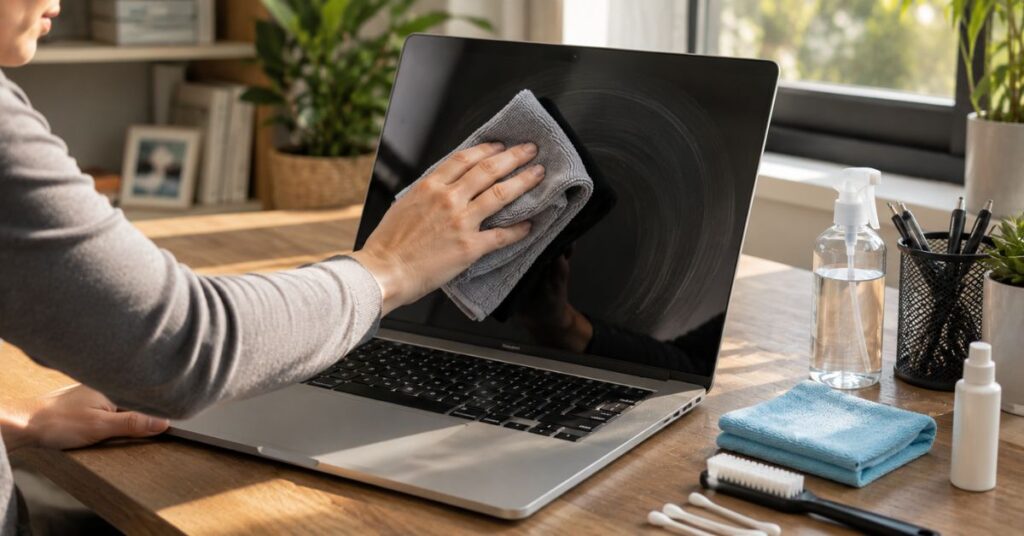
The display is one of the most delicate parts of your computer, so it’s important to learn how to clean a laptop screen without causing scratches or damaging its protective coating. Modern laptops, including Windows devices, MacBooks, and Chromebooks, often have anti-glare or anti-reflective coatings that can wear off if cleaned with harsh chemicals.
Your laptop screen collects fingerprints, dust, sneezes, and smudges every day. Besides making the display look dirty, these marks reduce screen clarity and can make it harder to work for long periods.
Before cleaning the screen, make sure the laptop is turned off and has cooled completely. A black screen makes it much easier to see dust and fingerprints.
Begin by using a clean, dry microfiber cloth. Wipe the screen gently from top to bottom using slow, even strokes. Avoid pressing hard because LCD and OLED panels are sensitive to pressure.
If fingerprints remain, lightly dampen one corner of the microfiber cloth with distilled water or a screen-safe cleaner recommended by your laptop manufacturer. The cloth should never drip with liquid. Continue wiping gently until the screen looks clean.
Never spray liquid directly onto the display because moisture can run into the edges and damage internal components.
If stubborn marks remain, slightly dampen the cloth with a small amount of 70% isopropyl alcohol only if your laptop manufacturer allows it. Always check your owner’s manual first, especially for MacBooks and premium displays.
When learning how to clean a laptop, remember that patience is more effective than pressure. Gentle cleaning protects your screen and keeps it looking like new.
Avoid These Mistakes
- Never use paper towels.
- Don’t use window cleaner or glass cleaner.
- Avoid bleach or ammonia-based products.
- Don’t scrub the screen aggressively.
- Never spray cleaner directly onto the display.
Expert Tip
Fold your microfiber cloth into quarters. As one side becomes dirty, switch to a clean section to prevent spreading dust back onto the screen.
Maintenance Tip
A quick wipe every few days prevents fingerprints from becoming difficult to remove.
How to Clean a Laptop Keyboard Properly
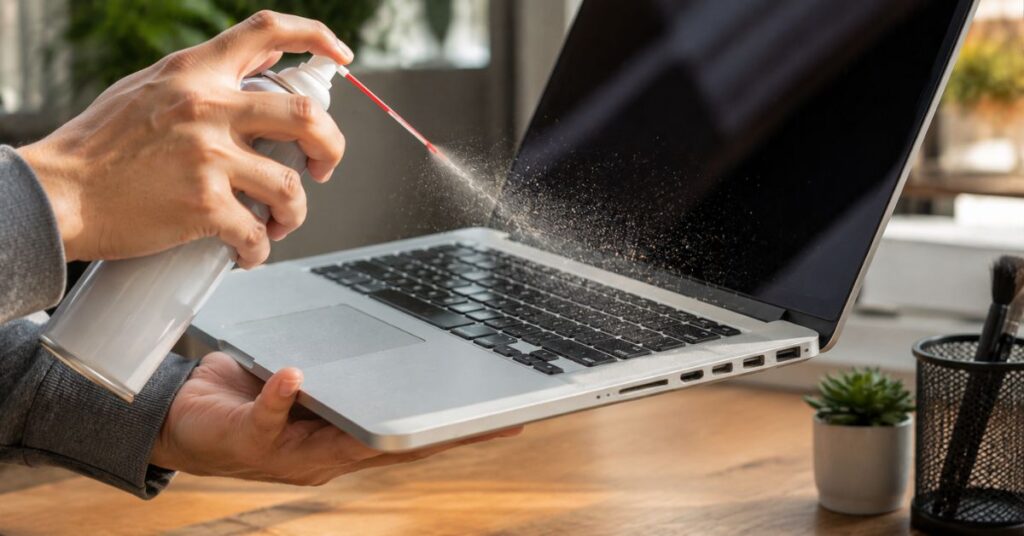
For many people, the keyboard is the dirtiest part of their computer. It collects dust, crumbs, skin oils, pet hair, and bacteria every time it’s used. That’s why understanding how to clean a laptop keyboard correctly is essential for both hygiene and performance.
A dirty keyboard doesn’t just look unpleasant. Sticky keys, trapped debris, and accumulated dust can affect typing accuracy and even shorten the life of the keyboard.
Start by turning the laptop upside down at about a 75-degree angle. Gently tap the bottom to allow loose crumbs and dirt to fall out naturally.
Next, use compressed air to remove debris hiding beneath the keys. Hold the can upright and spray short bursts while moving across the keyboard from left to right. Avoid holding the nozzle too close because excessive air pressure may force moisture onto the keyboard.
After removing loose dust, wipe each key with a microfiber cloth slightly dampened with distilled water or approved electronics cleaner.
For greasy fingerprints, lightly dampen a cotton swab with 70% isopropyl alcohol and clean around the edges of individual keys.
Do not pour liquid onto the keyboard or soak cotton swabs.
Cleaning the keyboard regularly is one of the easiest ways to practice how to clean a laptop while preventing sticky keys and maintaining smooth typing.
Signs Your Keyboard Needs Cleaning
- Sticky keys
- Delayed typing response
- Visible crumbs
- Dust between keys
- Oily fingerprints
- Unpleasant odor
- Loud fan caused by dust entering vents
Expert Tip
Compressed air works best when sprayed in short bursts instead of one long spray.
Maintenance Tip
Wash your hands before using your laptop whenever possible. Clean hands dramatically reduce oil buildup on the keyboard.
How to Clean Between Keyboard Keys
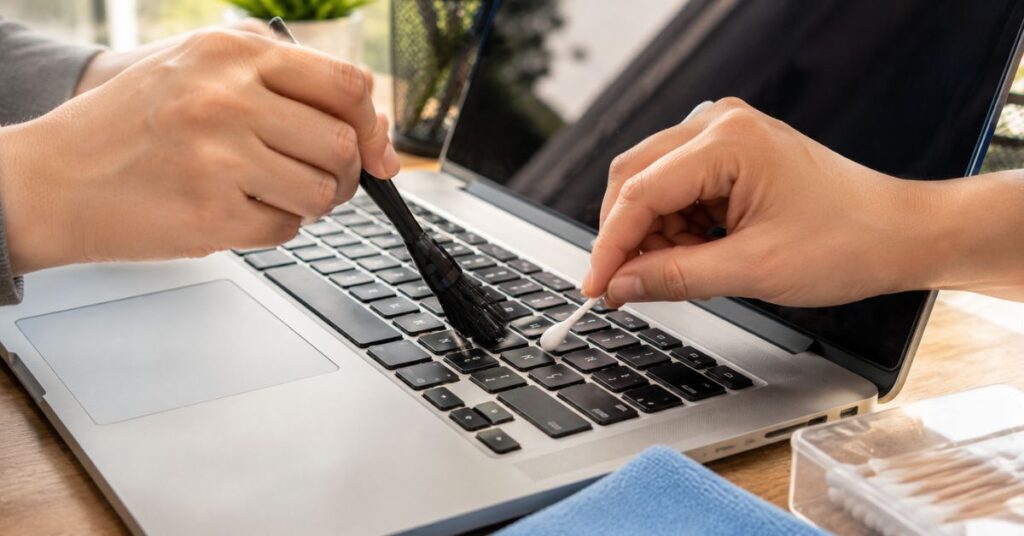
Even after wiping the keyboard surface, tiny particles often remain trapped underneath and between the keys. Learning this part of how to clean a laptop helps improve airflow and keeps keys functioning smoothly.
Begin with compressed air.
Hold the laptop at a slight angle while spraying across each keyboard row. This pushes dust outward instead of deeper inside.
Next, use a soft anti-static brush to gently loosen debris around the key edges.
If dirt remains, use a dry cotton swab to reach narrow spaces between keys.
Never insert metal objects, knives, tweezers, or toothpicks between keys. These can damage delicate key mechanisms.
If a sticky substance such as juice or coffee has dried beneath the keys, avoid removing keycaps unless your laptop manufacturer specifically recommends doing so.
Most modern laptops use fragile scissor-switch mechanisms that can break easily.
Learning how to clean a laptop safely means knowing when not to force components apart.
Expert Tip
Work row by row instead of randomly cleaning keys. This prevents missing hidden dirt.
Maintenance Tip
Using a keyboard cover while eating can greatly reduce crumbs and sticky residue.
How to Clean the Laptop Touchpad
The touchpad is one of the most frequently touched parts of your computer. Throughout the day, it collects skin oils, sweat, lotion residue, and dirt from your fingertips.
If ignored, the touchpad may become slippery, sticky, or less responsive.
When learning how to clean a laptop, don’t overlook this small but important area.
Use a dry microfiber cloth first to remove loose dust.
Then slightly dampen the cloth with distilled water.
Gently wipe the touchpad using smooth circular motions.
For stubborn fingerprints or oily buildup, lightly dampen the cloth with a small amount of 70% isopropyl alcohol if approved by your laptop manufacturer.
Avoid excessive moisture around the edges because liquid can seep beneath the touchpad.
Allow the surface to dry completely before turning your laptop back on.
Expert Tip
Less liquid always produces better results when cleaning electronics.
Maintenance Tip
Cleaning the touchpad once each week helps maintain smooth cursor movement.
Related Article
How to Clean a Glass Stove Top Without Scratching
How to Clean an Air Fryer Properly
How to Clean a Microwave Naturally
How to Clean Laptop Ports
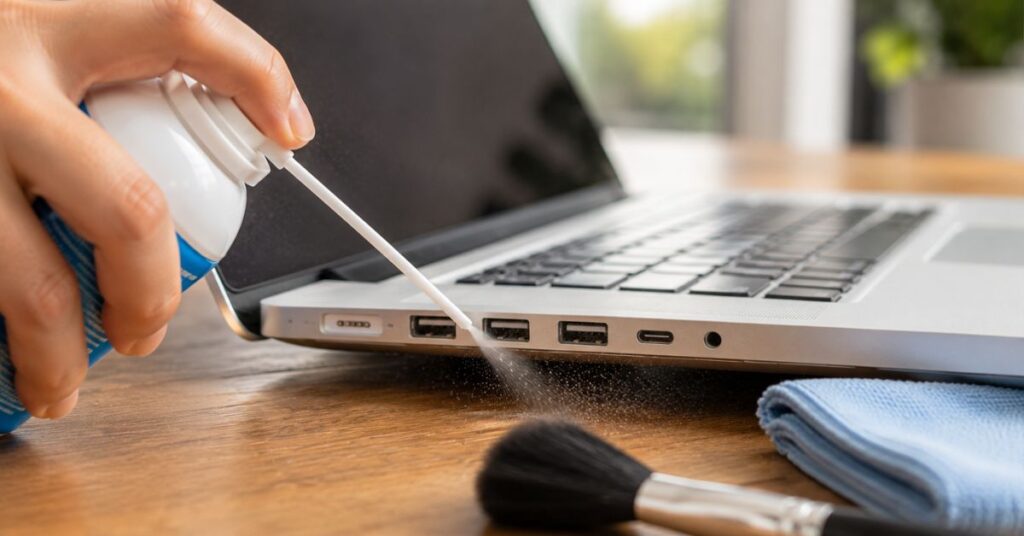
Laptop ports are magnets for dust and lint, especially if you frequently carry your computer in a backpack or laptop bag.
USB ports, HDMI ports, headphone jacks, SD card readers, and charging ports can all collect debris over time.
A dirty charging port may even prevent proper charging.
One important step in how to clean a laptop is keeping these openings free from dust.
Start by shining a flashlight into each port.
If you notice lint or dust, use compressed air held several inches away.
Blow short bursts to remove loose debris.
If needed, use a soft anti-static brush around the opening.
Never insert metal tools into ports.
Avoid using paper clips, needles, screwdrivers, knives, or pins because these may bend delicate connectors or cause electrical damage.
If a charging port appears damaged or contains sticky residue, consult a professional technician instead of forcing objects inside.
Expert Tip
Compressed air removes most debris without touching delicate electrical contacts.
Maintenance Tip
Use dust plugs if you rarely use certain ports, especially on laptops used outdoors or while traveling.
How to Clean Laptop Air Vents
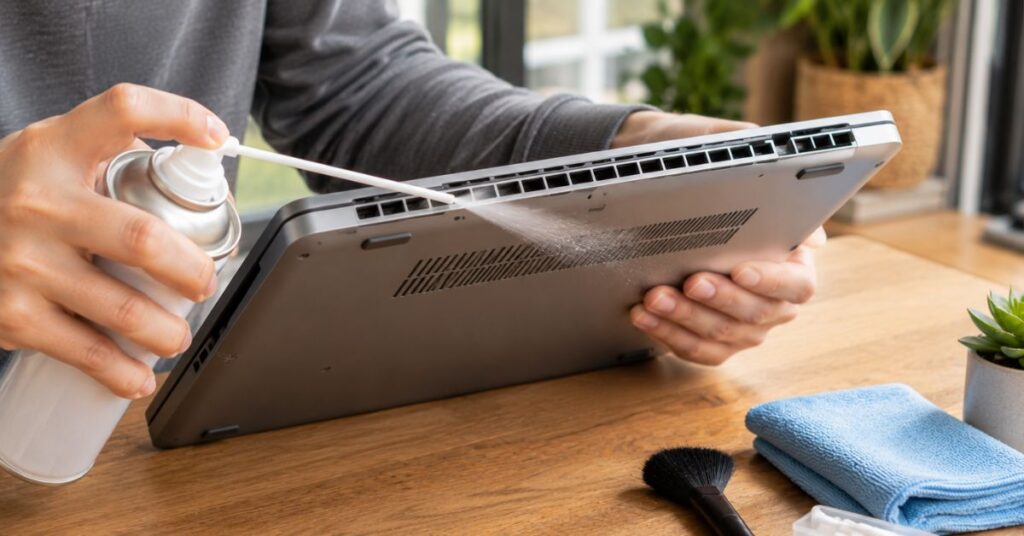
Air vents help your laptop stay cool by allowing heat to escape during operation.
When these vents become blocked with dust, airflow decreases, internal temperatures rise, and cooling fans work much harder.
Understanding how to clean a laptop includes paying attention to these often-overlooked openings.
First, locate all ventilation openings on your laptop.
Most are found along the sides, rear, or bottom panel.
Use compressed air to blow dust outward from each vent.
Hold the can upright and spray short bursts rather than continuous airflow.
If visible dust remains near the vent openings, gently loosen it using a soft anti-static brush.
Avoid pushing debris deeper inside.
Never insert cotton swabs or sharp objects into ventilation slots.
Blocked vents are one of the leading causes of overheating, noisy fans, and reduced performance.
Keeping them clean allows your laptop to cool itself efficiently during gaming, video editing, office work, or streaming.
Expert Tip
Clean laptop vents every month if you have pets or live in a dusty environment.
Maintenance Tip
Always use your laptop on a hard, flat surface. Beds, blankets, and cushions block airflow and quickly clog vents.
How to Remove Dust from Laptop Fans (Without Opening the Laptop)
One of the biggest reasons laptops overheat is dust buildup inside the cooling system. As your laptop pulls in air to cool the processor, it also draws in tiny dust particles, pet hair, and lint. Over time, this debris collects around the cooling fan and heat sink, reducing airflow and forcing the fan to work much harder.
If you’re learning how to clean a laptop, removing dust from the cooling system is one of the most valuable maintenance tasks you can perform. Fortunately, you can reduce dust without opening the laptop.
Start by shutting down your laptop and unplugging the power adapter. Move to a well-ventilated area because compressed air may blow out a surprising amount of dust.
Locate the air intake and exhaust vents. Most laptops have intake vents on the bottom and exhaust vents on the sides or rear.
Hold the compressed air can upright and spray short bursts into the vents. Keep the nozzle a few inches away to avoid excessive pressure. Rotate the laptop slightly and repeat from different angles to help loosen trapped dust.
Avoid spraying continuously for long periods because compressed air cans become cold during extended use and may release moisture.
If visible dust remains near the vent openings, gently remove it using a soft anti-static brush.
Never use a household vacuum cleaner directly on the vents. Standard vacuums can create static electricity that may damage sensitive electronic components.
If your laptop still overheats after external cleaning, the internal fan may require professional servicing. Opening the laptop yourself could void the warranty or damage delicate connectors if you’re unfamiliar with the hardware.
Learning how to clean a laptop properly also means recognizing when a deeper internal cleaning should be left to an experienced technician.
Signs the Fan Needs Cleaning
- Fan runs loudly even during light tasks
- Laptop becomes hot within minutes
- Airflow from vents feels weak
- Frequent overheating warnings
- Unexpected shutdowns
- Slower overall performance
- Bottom panel feels unusually hot
Expert Tip
Use compressed air every one to two months to help prevent heavy dust buildup before it affects cooling performance.
Maintenance Tip
Using your laptop on a desk instead of a bed or couch significantly reduces the amount of dust pulled into the cooling system.
How to Disinfect a Laptop Safely
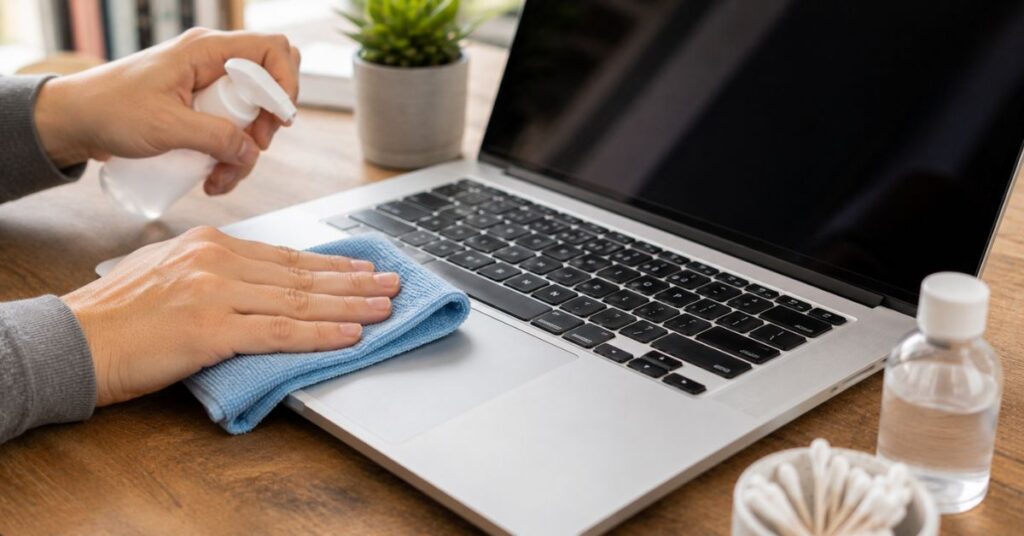
Cleaning removes dust and dirt, but disinfecting helps reduce germs and bacteria on frequently touched surfaces. Since laptops are handled throughout the day, especially in offices, schools, coffee shops, and shared workspaces, disinfecting them occasionally is a smart habit.
Many people searching for how to clean a laptop also want to know how to sanitize it safely without damaging the electronics.
Begin by powering off the laptop and disconnecting all cables.
Use a clean microfiber cloth lightly dampened with 70% isopropyl alcohol if recommended by your laptop manufacturer. The cloth should feel barely damp rather than wet.
Carefully wipe the following areas:
- Keyboard
- Touchpad
- Palm rests
- Outer lid
- Bottom panel
- Power button
Allow the alcohol to evaporate naturally before turning the laptop back on.
Avoid disinfecting the display with alcohol unless your manufacturer specifically states that it is safe for your screen type.
Many modern displays have delicate coatings that can become permanently damaged by harsh cleaning products.
Never spray disinfectant directly onto the laptop.
Similarly, avoid bleach, hydrogen peroxide, aerosol sprays, household cleaners, or disinfecting wipes containing excessive moisture.
When practicing how to clean a laptop, remember that gentle cleaning is always safer than aggressive scrubbing.
Expert Tip
Disinfect your laptop weekly if multiple people use it or if you frequently work in public places.
Maintenance Tip
Wash your hands regularly to reduce the amount of bacteria transferred onto your laptop throughout the day.
Common Laptop Cleaning Mistakes to Avoid
Even people who regularly clean their computers sometimes make mistakes that shorten the life of their devices.
Knowing what not to do is just as important as understanding how to clean a laptop correctly.
Here are the most common mistakes homeowners, students, and office workers make.
Spraying Liquid Directly on the Laptop
Always spray cleaner onto the microfiber cloth instead of the laptop itself.
Liquid can seep inside the keyboard, screen bezel, ports, or speakers and damage internal components.
Using Paper Towels
Paper towels may seem soft, but they contain tiny wood fibers that can leave fine scratches on displays and glossy surfaces.
A microfiber cloth is always the safer choice.
Applying Too Much Pressure
Pressing hard while cleaning the display can damage LCD or OLED panels.
Gentle strokes are much more effective.
Using Household Cleaning Products
Window cleaner, bleach, furniture polish, acetone, ammonia, and kitchen cleaners are not designed for electronics.
Many remove protective coatings or discolor plastic surfaces.
Forgetting to Turn Off the Laptop
Cleaning a powered-on laptop increases the risk of accidental key presses and electrical damage.
Always shut it down first.
Ignoring Air Vents
Some people only wipe the keyboard and screen while forgetting the cooling vents.
Blocked vents are one of the leading causes of overheating.
Using Excessive Water
Too much moisture can permanently damage electronic components.
The cleaning cloth should always be lightly dampened, not wet.
Removing Keyboard Keys Unnecessarily
Modern laptop keyboards are delicate.
Unless the manufacturer provides instructions, avoid removing keycaps during routine cleaning.
Learning how to clean a laptop safely means avoiding shortcuts that may cause costly repairs.
Expert Tip
If you’re ever unsure whether a cleaning product is safe, check the laptop manufacturer’s official recommendations before using it.
Maintenance Tip
Keep a dedicated electronics cleaning kit instead of using random household cleaners.
Natural vs. Commercial Laptop Cleaning Products
Many people wonder whether homemade cleaning solutions work as well as commercial electronics cleaners.
The answer depends on the product you’re using.
When learning how to clean a laptop, choosing the correct cleaner is just as important as using the correct technique.
Natural Cleaning Options
A microfiber cloth slightly dampened with distilled water is often enough for removing light dust and fingerprints.
Distilled water leaves fewer mineral spots than ordinary tap water.
For approved disinfecting, 70% isopropyl alcohol works well on many laptop surfaces, although you should always check your manufacturer’s instructions first.
Commercial Electronics Cleaners
Electronics cleaning sprays are specifically designed for sensitive devices.
Many evaporate quickly and leave no streaks behind.
They are often a good option for people who clean laptops frequently.
Which Is Better?
For routine cleaning, distilled water and a microfiber cloth usually provide excellent results.
For greasy fingerprints, sanitizing, or stubborn marks, a high-quality electronics cleaner may perform better.
Regardless of the product you choose, never use cleaners containing bleach, ammonia, acetone, or abrasive chemicals.
A large part of mastering how to clean a laptop is selecting products made specifically for electronics.
Expert Tip
Read product labels carefully before using any commercial cleaner on your laptop screen. How to clean a laptop
Maintenance Tip
Store cleaning products away from direct sunlight and tightly close bottles after each use.
Can You Use Alcohol to Clean a Laptop?
This is one of the most frequently asked questions by people researching how to clean a laptop.
The short answer is yes—but only under certain conditions.
Most manufacturers consider 70% isopropyl alcohol safe for disinfecting external laptop surfaces when used correctly.
However, alcohol should never be poured directly onto the laptop.
Instead, lightly dampen a microfiber cloth and gently wipe the keyboard, touchpad, palm rests, and outer casing.
Some premium displays, particularly those with anti-reflective coatings, may require special cleaning methods.
Before using alcohol on the screen, always check the manufacturer’s cleaning recommendations.
Avoid using rubbing alcohol with unknown concentrations or products containing perfumes, moisturizers, or additional chemicals.
These ingredients may leave residue behind.
When practicing how to clean a laptop, using the correct concentration matters just as much as the cleaning method.
Expert Tip
A 70% isopropyl alcohol solution evaporates more slowly than higher concentrations, allowing it to disinfect surfaces more effectively.
Maintenance Tip
Keep a small bottle of electronics-safe isopropyl alcohol in your cleaning kit for occasional disinfecting.
Can You Use Water on a Laptop?
Many people assume water is completely safe because it’s a natural cleaner.
In reality, water must be used very carefully when learning how to clean a laptop.
The safest option is distilled water because it contains fewer minerals than tap water.
Only use a tiny amount to lightly dampen a microfiber cloth.
Never pour water directly onto the laptop.
Never spray water onto the keyboard, ports, speakers, cooling vents, or display.
Excess moisture can seep into internal components and cause permanent damage.
If liquid accidentally spills onto your laptop, turn it off immediately, unplug the charger, and allow it to dry completely before attempting to power it on again.
For significant spills, professional servicing is recommended.
Using water correctly is an important part of how to clean a laptop, but less is always better.
Expert Tip
If the cloth feels wet enough to squeeze out droplets, it’s too wet for cleaning electronics.
Maintenance Tip
Keep distilled water in a labeled spray bottle reserved only for cleaning electronics.
Tips to Keep Your Laptop Clean Longer
Now that you’ve learned how to clean a laptop, the next step is preventing dirt from building up again. A few simple habits can keep your laptop looking clean, improve its performance, and reduce how often it needs deep cleaning.
Wash Your Hands Before Using Your Laptop
Clean hands transfer less oil, dirt, and bacteria to the keyboard and touchpad. This simple habit also helps prevent sticky keys and greasy fingerprints.
Avoid Eating Over Your Laptop
Crumbs and food particles easily fall between the keyboard keys. Sugary drinks and coffee spills are even more dangerous because liquids can permanently damage internal components.
Keep Drinks at a Safe Distance
Even a small spill can destroy a laptop motherboard or keyboard. Place beverages on the opposite side of your desk whenever possible.
Use a Laptop Sleeve
A padded sleeve protects your laptop from dust, lint, and scratches while traveling. It also reduces the amount of dirt that enters the cooling vents.
Store It in a Clean Environment
Avoid leaving your laptop on dusty shelves, garage workbenches, kitchen counters, or near open windows where airborne dust is common.
Keep Pets Away
Pet hair is one of the biggest causes of blocked laptop vents. If you have dogs or cats, clean your workspace more frequently.
Clean the Workspace
A dusty desk usually leads to a dusty laptop. Wipe down your desk, monitor, keyboard, and accessories regularly to reduce airborne debris.
Use It on Hard Surfaces
Beds, blankets, pillows, and sofas block airflow and allow fabric fibers to enter the cooling system. Always place your laptop on a solid, flat surface.
Close the Lid When Not in Use
Closing the lid protects the keyboard and display from dust settling inside.
Follow a Cleaning Schedule
Instead of waiting until your laptop looks dirty, create a routine. Wipe the exterior weekly and perform a more thorough cleaning every month.
Following these habits makes cleaning a laptop much easier because dirt never has a chance to build up.
Expert Tip
Keeping a microfiber cloth beside your workspace encourages quick daily cleaning before dust accumulates.
Maintenance Tip
Set a monthly reminder on your phone to inspect the keyboard, screen, ports, and cooling vents.
Signs Your Laptop Needs Cleaning Immediately
Even if your laptop appears clean from the outside, hidden dust and dirt may already be affecting its performance.
If you notice any of the following problems, it’s probably time to review how to clean a laptop and give your device a proper cleaning.
The Cooling Fan Is Constantly Loud
A noisy fan usually indicates restricted airflow caused by dust buildup inside the cooling system.
The Laptop Gets Hot Quickly
If the bottom becomes unusually warm during normal tasks like web browsing or document editing, dirty vents may be limiting airflow.
The Keyboard Feels Sticky
Sticky or slow keys often result from spilled drinks, food crumbs, or accumulated skin oils.
The Screen Looks Cloudy
Fingerprints, dust, and smudges reduce screen clarity and make it harder to read.
Charging Problems
Dust inside the charging port may interrupt the connection between the charger and the laptop.
Slow Performance
Although software issues also cause slowdowns, overheating from clogged vents can reduce processor performance.
Dust Around the Air Vents
Visible dust is an obvious sign that internal cleaning is overdue.
Unpleasant Odors
Burning smells or musty odors should never be ignored. Turn off the laptop immediately and investigate the cause.
Recognizing these warning signs early allows you to practice how to clean a laptop before minor dirt turns into an expensive repair.
Expert Tip
If cleaning the exterior doesn’t solve overheating or loud fan noise, have the laptop inspected by a qualified technician.
Maintenance Tip
Inspect your laptop every month, even if it appears clean.
FAQs
1. How often should I clean my laptop?
For most users, wipe the screen, keyboard, and exterior once a week. Perform a deeper cleaning of vents and ports about once a month. Learning how to clean a laptop regularly helps prevent overheating and extends its lifespan.
2. Can I use disinfecting wipes on my laptop?
Only if they are approved by the laptop manufacturer and are not excessively wet. Never use bleach-based or abrasive wipes.
3. Is compressed air safe for cleaning laptops?
Yes. Compressed air is one of the safest ways to remove loose dust from keyboards and cooling vents when used in short bursts.
4. Can I use glass cleaner on my laptop screen?
No. Glass cleaners often contain ammonia or other chemicals that can damage anti-reflective screen coatings.
5. Is rubbing alcohol safe for laptops?
A 70% isopropyl alcohol solution is commonly recommended for disinfecting many laptop surfaces, but always follow your manufacturer’s cleaning guidelines.
6. Why does my laptop overheat even after cleaning?
Heavy internal dust buildup, worn thermal paste, blocked cooling fans, or hardware issues may require professional servicing.
7. Can I vacuum my laptop?
Household vacuum cleaners are not recommended because they may generate static electricity. Compressed air is the safer option.
8. What’s the safest cloth for cleaning a laptop?
A clean, lint-free microfiber cloth is the best choice because it removes dust without scratching delicate surfaces.
9. Can I clean my laptop while it’s charging?
No. Always power off the laptop and disconnect the charger before cleaning.
10. Does cleaning improve laptop performance?
Yes. Removing dust from vents improves airflow, reduces overheating, and allows the cooling system to work more efficiently. That’s one reason learning how to clean a laptop is an important part of regular computer maintenance.
Conclusion
Keeping your computer clean doesn’t require expensive equipment or professional skills. By following the safe methods in this guide, you now know how to clean a laptop without damaging its delicate components.
Regular cleaning removes dust, fingerprints, bacteria, and debris that can reduce performance and shorten the life of your device. A few minutes of maintenance each week can help prevent overheating, improve airflow, and keep your laptop looking and performing like new.
Whether you use a Windows laptop, MacBook, or Chromebook, the same basic principles apply: use gentle cleaning tools, avoid excessive moisture, and never use harsh household chemicals.
At True Housekeeping, we believe that proper care extends the life of everything in your home, including your electronics. Make laptop cleaning part of your monthly routine, and your device will reward you with better performance, improved reliability, and a cleaner workspace.




Leave a Reply